KiCad Gerber Ultimate Guide | KiCad 10 Perfect Pre-Order Checklist
KiCad Gerber export is the critical handoff ritual between design and fabrication: you do not hand over your raw .kicad_pcb file, but a complete fabrication package containing Gerbers, drill files, component placement data, and manufacturing specifications. PCB fabricators produce strictly according to this package; any missing layer or misconfigured setting will translate directly into physical flaws on your boards.
Think back to the classic first-order prototyping mistakes: generating only Gerber files while forgetting the pick-and-place position file, causing the assembly house to ask for a resubmission and adding days of delay; or misconfiguring drill units, leading to severe hole misalignment that scraps the entire batch. Mastering the full KiCad Gerber fabrication package workflow is a lesson bought with real time and money. If your prototyping process is still “plot Gerber and pray,” this complete KiCad 10 guide will walk you through the essential settings and establish a rock-solid pre-order inspection checklist.

Contents
What is a PCB Fabrication Package?
In modern PCB manufacturing, bare-board fabricators (PCB fabs) and contract electronics manufacturers (PCBA assembly houses) require distinct sets of machine-readable files. Setting up your KiCad Gerber deliverables properly ensures every machine down the assembly line receives valid instructions. A complete, production-ready manufacturing package must include:
| File Type | KiCad Source Menu | Target & Manufacturing Purpose |
|---|---|---|
| Gerber (.gbr) Layers | Plot | PCB Fab: Photoplotting, copper etching, solder mask apertures, silkscreen legends, board profile |
| Drill Files (.drl) | Generate Drill Files | PCB Fab: CNC drilling hole locations, diameters, and plating designations |
| Position Files (.pos) | File → Fabrication Outputs → Component Placement (.pos) | Assembly (SMT): XY coordinates, rotation, and layer data for pick-and-place feeders |
| IPC-D-356 Netlist | Plot Dialog Option | PCB Fab: Flying-probe electrical testing netlist validation |
| PDF Drawings & Schematics | File → Export → PDF | Engineering / QA: Stackup cross-checks, manual inspection, and archival records |
The Golden Rule: The board house builds exclusively what you supply. If an element or requirement is absent from the zip package, it will not exist on your physical hardware.
The Bad Smells of KiCad Gerber Only Handoffs
A frequent beginner pitfall is clicking “Plot” and blindly uploading bare .gbr files to the fab portal. Relying solely on raw KiCad Gerber data without the full manufacturing context leads to classic engineering delivery accidents (Bad Smells):
// Classic Fabrication Package Accidents
1. Missing .pos files → Assembly plant halts production → +3 days lead time
2. Drill units / format mismatch → Off-center holes → Entire batch scrapped
3. No IPC-D-356 netlist provided → Fab skips flying probe test → Shorted boards reach assembly
4. Soldermask polarity inverted → Copper pads coated in resist → Board impossible to solder
- Compounded Engineering Delays: Every missing file sends your project back to the engineering query queue. Fast-turn prototyping relies entirely on first-time package completeness.
- Hidden Failures Cost the Most: Without an electrical test netlist accompanying your KiCad Gerber files, fabricators cannot verify net continuity. Trace bridges and hairline opens typically remain undetected until late post-assembly power-on debugging.
- Template Delivery Mindset: Turn your fabrication output routine into a repeatable checklist rather than an exercise in memory.
Step-by-Step KiCad Gerber Export Settings
From the KiCad PCB Editor, navigate to File → Fabrication Outputs → Gerbers (.gbr) to open the plot dialogue and configure your KiCad Gerber options:
| Setting | Recommended Value | Engineering Rationale |
|---|---|---|
| Included Layers | F.Cu, B.Cu, F.Paste, B.Paste, F.Silks, B.Silks, F.Mask, B.Mask, Edge.Cuts | Essential 9 layers for double-sided boards; multi-layer designs must include all internal copper planes (In1.Cu, In2.Cu, etc.). |
| Use extended X2 format | Checked (if supported by fab) | Embeds file function and layer attribute metadata directly into header comments, minimizing CAM misinterpretations. |
| Subtract soldermask from silkscreen | Checked | Automatically clips legend text overlapping copper pad openings, preventing solder contamination during reflow. |
| Check zone fills before plotting | Checked (Mandatory) | Forces KiCad to verify and recalculate all copper pours, ensuring unpoured polygon adjustments do not slip through. |
| Plot all active layers | As required | Useful when multi-layer layouts or specialized mechanical drawing layers need batch output. |
Crucial Warning: Edge.Cuts defines your physical board boundary. If omitted during KiCad Gerber plotting, the CAM pre-processor will fail to detect board dimensions and outline routing paths, pausing your order immediately.
Drill Files and Component Placement (POS) Configuration
Drill tables and pick-and-place centroid positions require separate dedicated dialogues alongside your KiCad Gerber layers:
- Drill Files (Generate Drill Files)
– Drill file format: SelectExcellon(industry standard for CNC drill machinery).
– Drill Units: SelectMillimeters (mm)to maintain absolute metric parity with your board rules and prevent unit conversion discrepancies.
– PTH and NPTH: CheckMerge PTH and NPTH into one fileunless your fabricator explicitly requires Plated Through-Hole and Non-Plated mounting holes in separate files. - Component Position Files (.pos)
– Path:File → Fabrication Outputs → Component Placement (.pos).
– Format: SelectCSV(clean, comma-delimited tables are the easiest format for SMT pick-and-place programmers).
– Files: ChooseSingle file per side(generates dedicated top.pos and bottom.pos files).
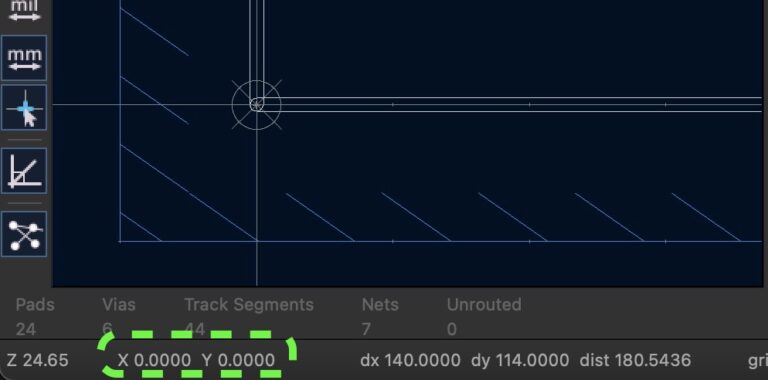
– Coordinates format: CheckUse Drill/place file originto guarantee exact zero-point alignment between components and the PCB outline. - IPC-D-356 Netlist Generation
In the Plot dialogue, checkGenerate netlist file (IPC-D-356A). This ASCII file encapsulates expected circuit connectivity, allowing automated flying-probe testers to cross-examine your KiCad Gerber artwork and catch hairline shorts in seconds.
Complete Fabrication Package Checklist and README Guide
Before compressing your folder into a release .zip archive, cross-check against this structured 4-layer board tree to ensure no KiCad Gerber or drill artifacts are missing:
project_v1.2_fab/
├── project-F_Cu.gbr         ✓ Top copper routing
├── project-In1_Cu.gbr       ✓ Inner layer 1 (e.g. GND plane)
├── project-In2_Cu.gbr       ✓ Inner layer 2 (e.g. Power plane)
├── project-B_Cu.gbr         ✓ Bottom copper routing
├── project-F_Mask.gbr       ✓ Top soldermask (clearances open)
├── project-B_Mask.gbr       ✓ Bottom soldermask
├── project-F_Silkscreen.gbr ✓ Top silkscreen markings
├── project-B_Silkscreen.gbr ✓ Bottom silkscreen markings
├── project-F_Paste.gbr      ✓ Top solder paste stencil apertures
├── project-Edge_Cuts.gbr    ✓ Board outline profile
├── project.drl              ✓ CNC drill table
├── project-top.pos          ✓ Top-side SMT centroid coordinates
├── project-bottom.pos       ✓ Bottom-side SMT centroid coordinates
├── project-IPC-D356.d356    ✓ Electrical test netlist
├── project-schematic.pdf    ✓ Schematic reference documentation
└── README.txt               ✓ Engineering specs & fabrication notes
Standard README.txt Engineering Specimen:
Project Name: Sensor_Node_Controller v1.2
Material: FR-4 Standard (Tg 150-170)
Finished Thickness: 1.6 mm ±10%
Copper Weight: Outer 1 oz / Inner 0.5 oz
Surface Finish: ENIG (Electroless Nickel Immersion Gold 2u")
Solder Mask: Matte Black / Silkscreen: White
Electrical Test: 100% Flying Probe Test (refer to IPC-D-356)
Special Requirements: No impedance control, Edge.Cuts is true route boundary
5-Step Pre-Order Inspection in GerbView
Never upload files directly without visual verification. Launch KiCad’s integrated GerbView CAM viewer (File → Open Gerber...) and inspect your KiCad Gerber bundle with this 5-step validation:
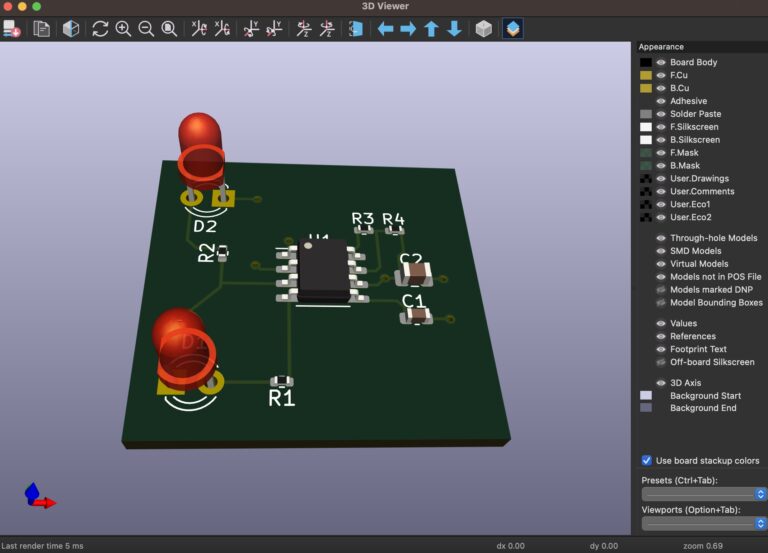
- Full Layer Stack Overlay: Load all generated
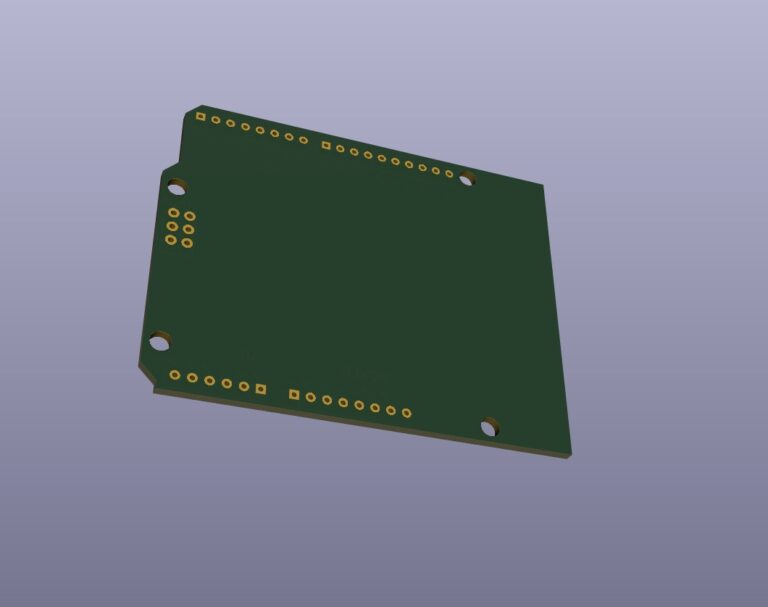
.gbrfiles simultaneously. Inspect whether copper fills, pad clusters, and silkscreen labels correlate accurately with your 3D viewer model. - Soldermask Aperture Audit: Isolate the solder mask layers. Verify every single surface-mount pad is cleared of resist and that adjacent copper traces are safely insulated.
- Drill Concentricity Check: Overlay the
.drllayer on top of copper artwork. Confirm every drill hole lands dead center on through-hole pads and via annular rings without registration offset. - Contour Closure Verification: Examine the
Edge.Cutsperimeter. Even a tiny pixel gap will break polygon continuity, triggering unexpected auto-closure geometry in automated CAM software. - Bottom Silkscreen Mirroring: Examine
B_Silkscreen. When viewed from above, text on the bottom must appear mirrored so that it reads naturally when viewing the physical board underside.
Pro DFM Tips and Fabricator Communication
Applying Design for Manufacturability (DFM) saves significant turnaround budget and guarantees production yield:
- Standardize Fabrication Package Templates: Store a validated output directory template in your engineering repository. For new project releases, simply clone the structure and bump the semantic version.
- Confirm Fab Process Capabilities Early: When dealing with a new fabricator, confirm their minimum trace/space (e.g., 4mil/4mil), smallest drill diameter (e.g., 0.2mm), and stackup limits with their CAM engineers before generating your final KiCad Gerber files. You can review complete layout parameters in the official KiCad PCB documentation.
- Eliminate Ambiguous File Naming: Never ship packages named “final,” “fixed_rev2,” or “new.” Use semantic revision tags (e.g.,
v1.0.0,v1.2.1) across directories and headers to prevent manufacturing collisions. - Segregate Solder Paste Stencils: Since paste stencils are often cut by specialized tooling vendors rather than bare board manufacturers, keep
F_PasteandB_Pasteisolated in a distinctstencil/subfolder. If your design requires high-density thermal and return-path stitching, review our guide on KiCad Stitching Vias automation to enhance layout integrity.
Conclusion
Mastering a disciplined KiCad Gerber export workflow is an essential milestone for every practicing hardware engineer. A cleanly structured fabrication package conveys professional manufacturing competence, cuts engineering query cycles, and guarantees your physical PCBA functions exactly as designed in CAD.
Before launching your next production run, keep this checklist on hand and verify each deliverable step by step. When package completeness becomes second nature, unexpected PCB prototyping delays become a thing of the past.